Getting started

Getting started with FixGrid for Procore.

FixGrid connects a completed Procore project to the owner's maintenance system. It pulls the closeout package — drawings, documents, specifications, submittals, RFIs, photos, locations, equipment and the asset register — into FixGrid and lands each artifact against the property. During unit acceptance, every finding that needs action is created in the GC's Procore Punch List with the field photo, and the GC's status is read back into FixGrid.

Reads the closeout package Writes punch items only Your Procore login, your projects
FixGrid import review after a Procore pull: a list of pulled equipment records, each with Map, Create and Park choices, and a commit bar showing how many rows are still undecided.
After a pull: equipment waits in the review queue until a person decides each row
Who does what

Two sides, two roles.

The GC grants access in Procore. The owner or operator connects and pulls in FixGrid. Neither side manages the other's logins.

The GC's Procore Company Admin
Installs the FixGrid app and permits the project.
From the Procore Marketplace, install FixGrid on the company, then add the project under Permitted Projects. That is the whole GC-side setup.
The owner / operator's FixGrid admin
Connects their own Procore login, maps the project to the property, and pulls.
The connection uses the Procore access the GC already gave that person. FixGrid never stores a Procore password.
Step by step

From Marketplace install to a closed punch item.

Steps 1 and 2 happen in Procore. Steps 3 through 6 happen in FixGrid.

1
In Procore

Install FixGrid.

Company Tools Admin App Management Install FixGrid

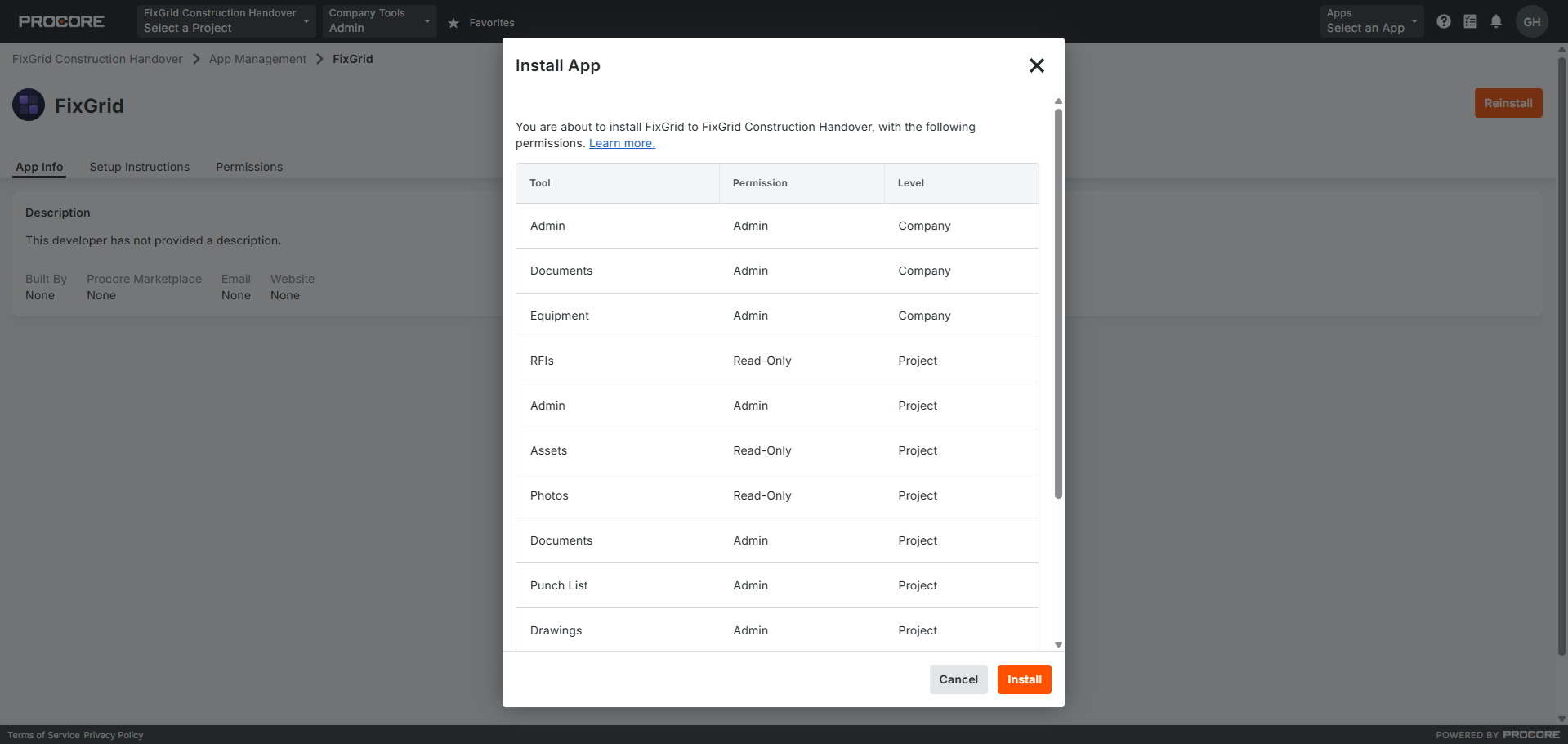
The GC's Procore Company Admin installs the FixGrid app on the company. Procore shows the tools and permission levels the app will use before you confirm.

Procore App Management showing the Install App dialog for FixGrid, listing each tool with its permission and level before install.
Procore App Management — installing FixGrid
2
In Procore

Permit the project.

FixGrid Permissions Permitted Projects add the project

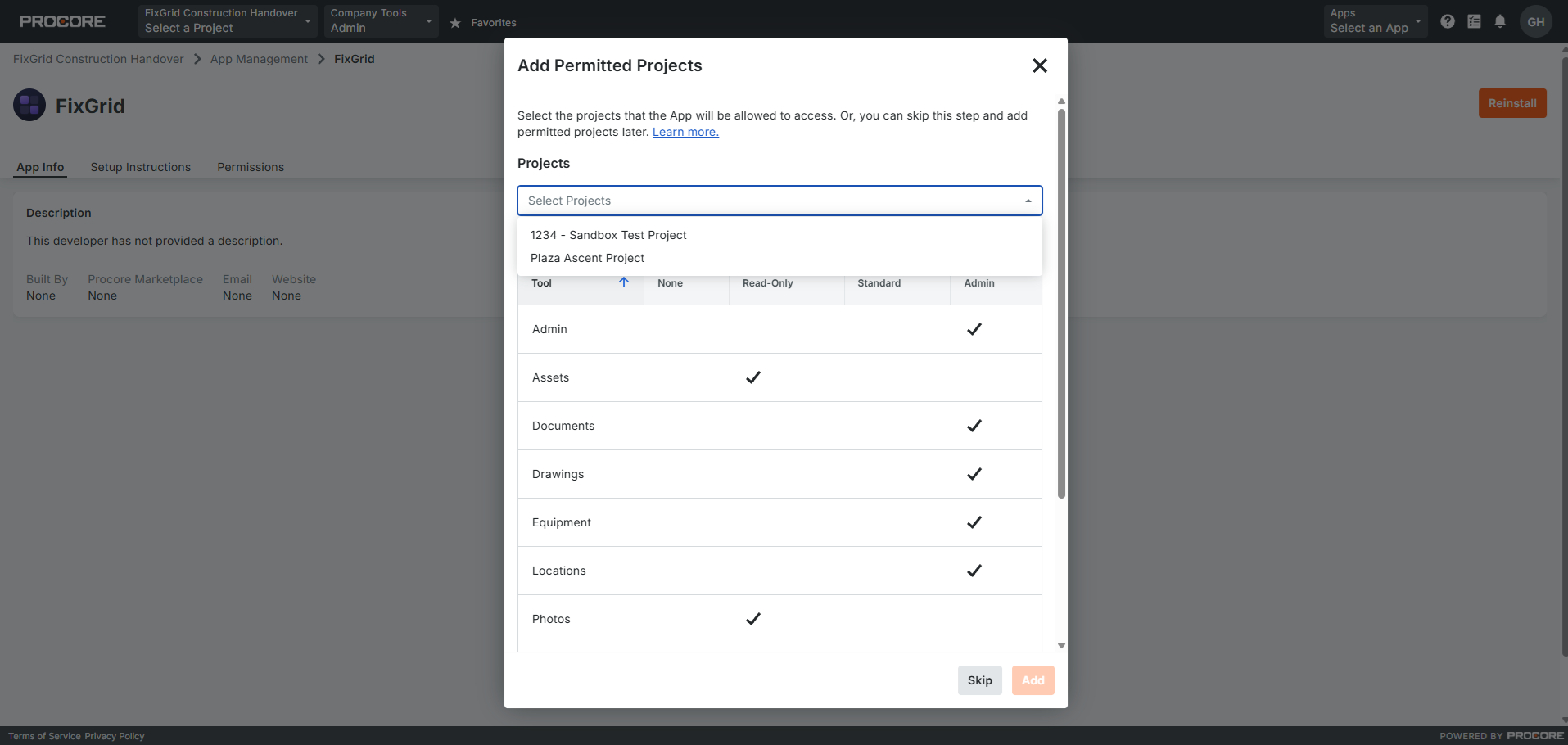
Add the completed project to FixGrid's permitted list, then confirm the tool permissions:

  • Documents
  • Drawings
  • Specifications
  • Submittals
  • RFIs
  • Photos
  • Locations
  • Equipment / Assets
  • Directory read-only
  • Punch List standard
Procore Add Permitted Projects dialog for the FixGrid app, with a project picker open above the per-tool permission table.
Adding a project under Permitted Projects
3
In FixGrid

Connect Procore.

Handover Procore Connect Procore

Sign in with your own Procore login. The project picker then shows every project that login can already open. One connected person is enough to start; a second is backup if one person's access is withdrawn.

The FixGrid Handover Procore page before connecting: a Connect your Procore login button, the three setup notes, and an empty Your Procore Projects list.
FixGrid Handover › Procore before connecting
4
In FixGrid

Map the Procore project to the FixGrid property.

Pick the project from the list and map it to the property it built. A property may host several projects — a base building plus retail build-outs, for example — and each one maps separately. Nothing is imported until a project is mapped.

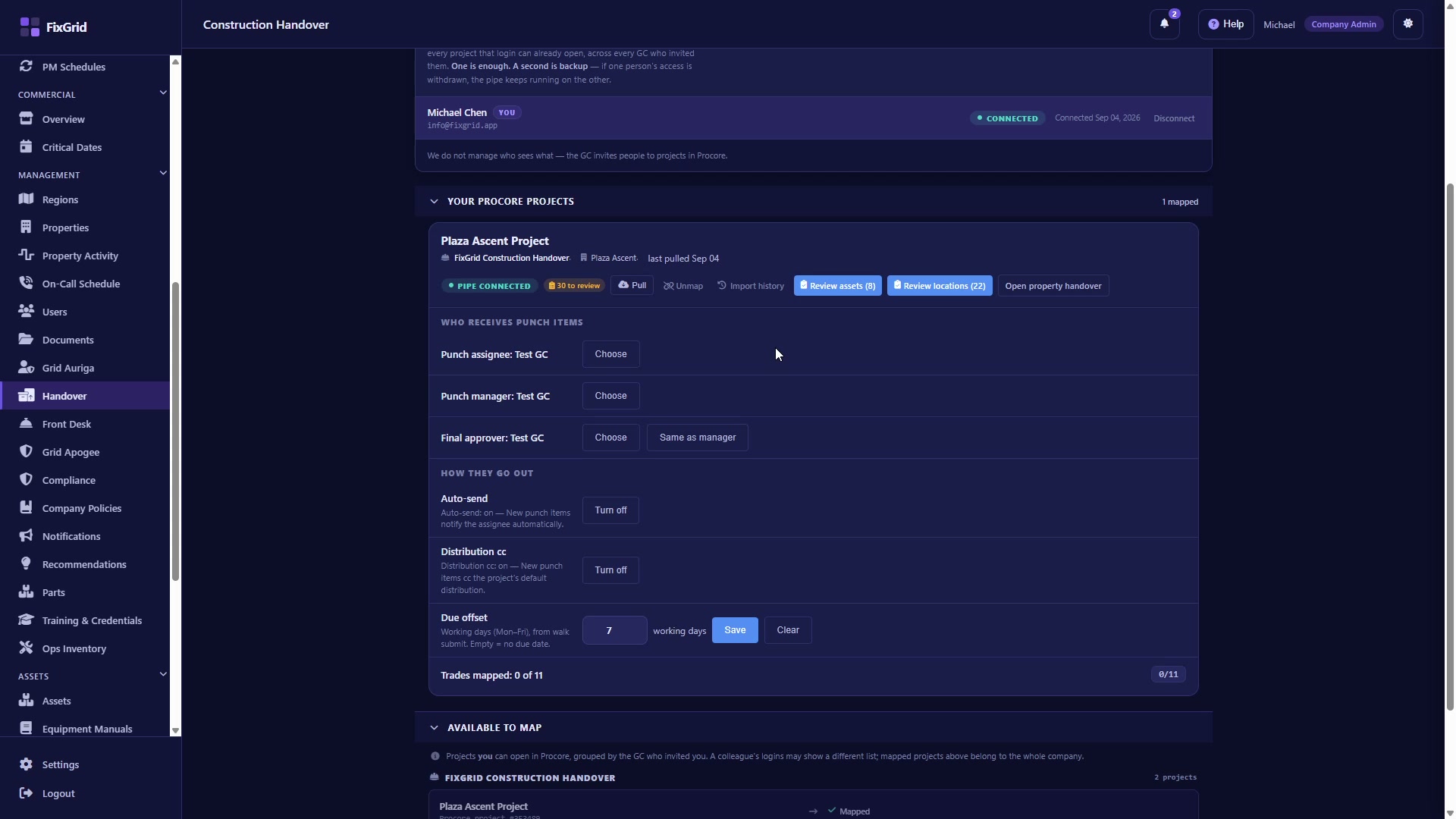
FixGrid Handover Procore page with a connected login and one Procore project mapped to a property, showing the Pull button, the review counts, and the punch-item recipient settings.
Connected, project mapped to its property, Pull ready
5
In FixGrid

Press Pull.

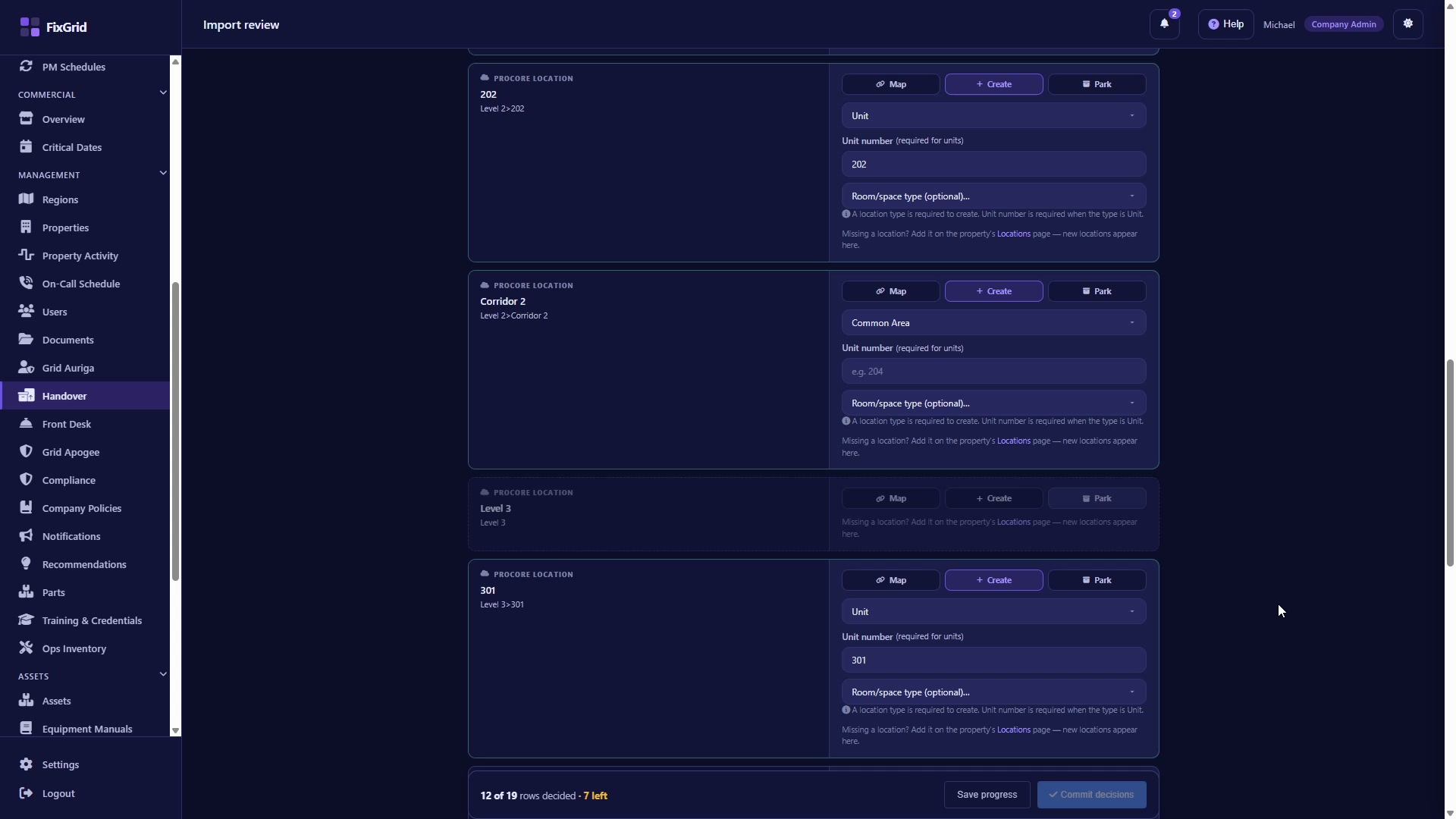
The closeout package lands against the property. Equipment and locations wait in a review queue, where a person decides each one: Map it to a record you already have, Create it new, or Park it for later. Nothing is blind-created.

FixGrid import review queue for pulled Procore locations, each row offering Map, Create or Park, with a progress bar counting decided rows before commit.
The review queue — Map / Create / Park, one row at a time
6
In FixGrid

Walk unit acceptance.

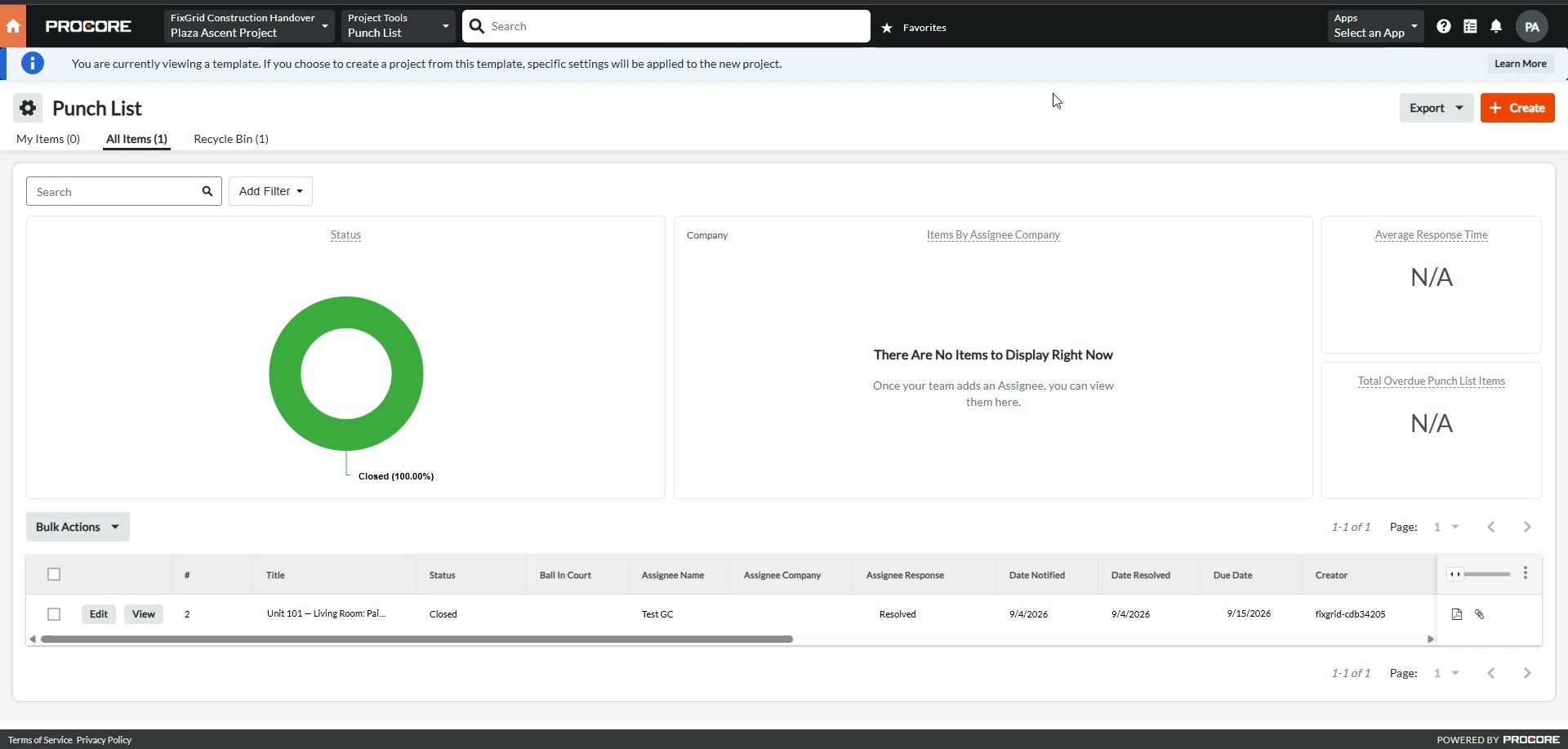
At submit, items needing action become punch items in Procore, tagged to the Procore location, with the photo attached. Press Refresh GC status to see the GC close them — the status shows on the walk summary without leaving FixGrid.

The Procore Punch List for the project showing the punch item FixGrid created, now marked Closed with the assignee's response recorded as Resolved.
The punch item, closed by the GC in Procore
First thing to check
If FixGrid suddenly can't see a project
A FixGrid app update in Procore can clear the Permitted Projects list. Re-add the project under FixGrid › Permissions in Procore, then press Re-check in FixGrid. This is the first thing to check before anything else.
Procore access

What FixGrid does — and does not do — with Procore access.

FixGrid does
  • Read the tools listed above — from permitted projects only.
  • Write punch items it creates during unit acceptance, with the field photo, and read back the GC's status on those items.
  • Pull when you press Pull. A re-pull picks up new revisions.
FixGrid does not
  • Edit or delete another party's item. It only touches punch items it created.
  • Bulk export, use webhooks, or sync continuously. Reads run when an operator asks.
  • Write warranty-year defects back to Procore. Closed-out projects go inactive, so warranty defects are managed in FixGrid, deliberately.
Support

Stuck, or need to report something?

Setup & product
Install, permissions, mapping, pulls, punch items.
Security
Access, data handling, or a vulnerability report.
Security posture
Encryption, access control, and the audit log.
Go deeper

The two modules behind this integration.

Construction Handover is documents in. Unit Construction Acceptance is punches out. Same project, opposite directions.